














How to Build a Clean, Cable-Free Desk Setup for Gaming and Productivity

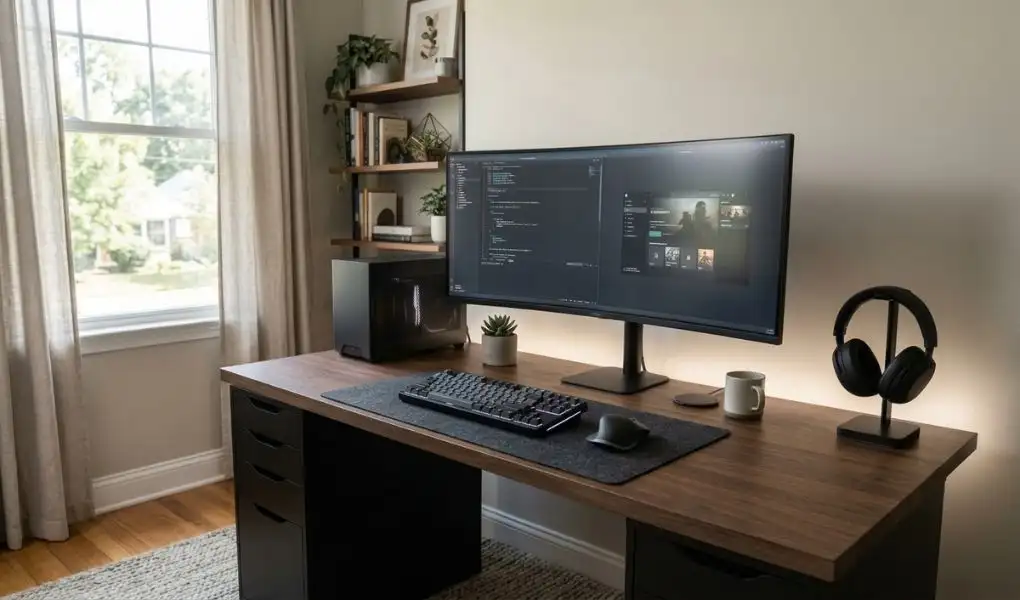
A well-planned desk rarely announces itself. The monitor sits at eye level, the keyboard has breathing room, the mouse tracks without obstruction. Cables piling up behind the desk are the one thing that gives an otherwise good setup away. This is a familiar frustration for anyone using a single workstation across gaming, work, study, and content creation. Clutter accumulates quietly, and before long, something as simple as reaching for a controller or locating a headset turns into a small daily annoyance. A controller is quicker to pick up, headphones have a defined home and there is less clutter competing for attention.
At T4G Store, the focus is on bringing together gaming desks, peripherals and accessories that make this kind of gaming setup practical. The right combination does not require removing every wire from the room. It requires placing each connection where it makes sense and choosing products that help keep the visible workspace clear.
Start With the Desk
The desk is the foundation of any cable management setup. If the desk itself has nowhere to route power cables, charging leads and display connections, even expensive accessories will struggle to create a polished result.
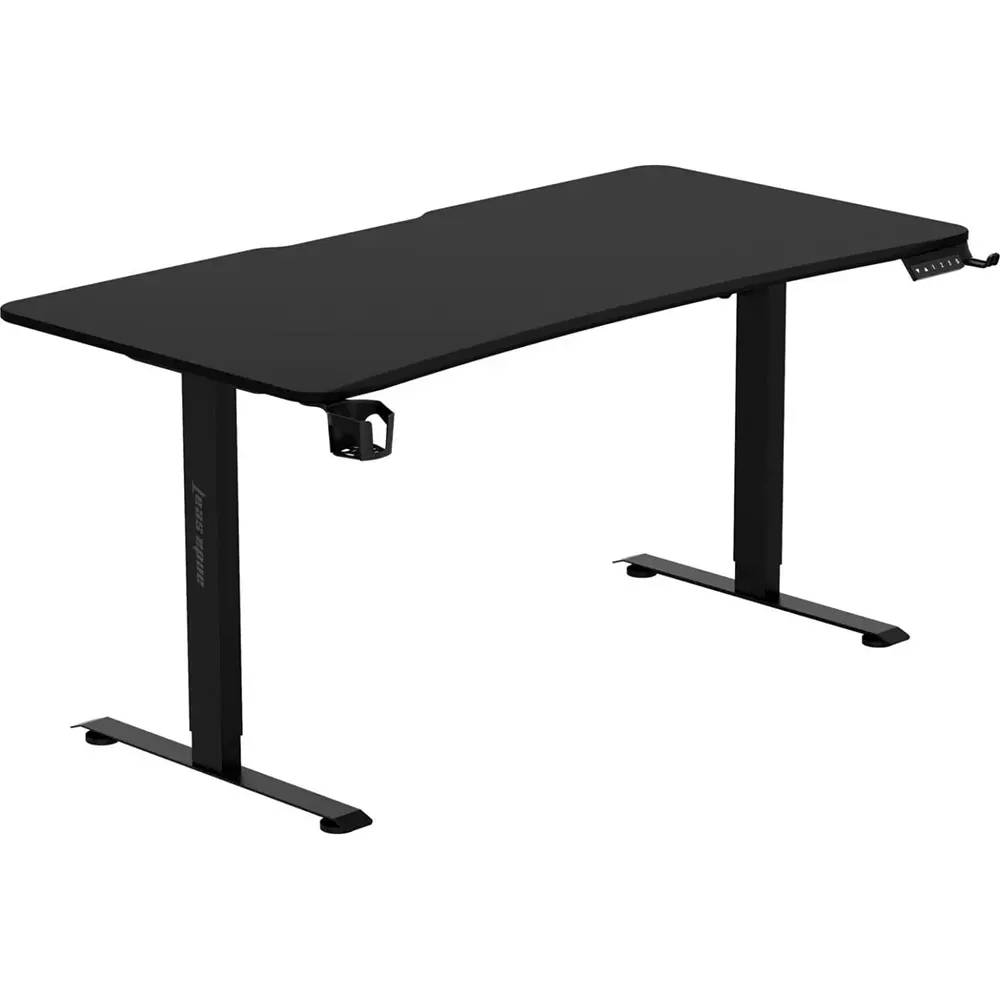
The AndaSeat Xtreme Series Gaming Desk addresses cable management at the design stage rather than relying entirely on add-on solutions. Its integrated cable-management features help keep power cables and other connections organised beneath the desk, while the height-adjustable design allows the workstation to adapt between sitting and standing positions. Users with more gear to fit can go with the AndaSeat XTREME E 1.8M Smart Desk Desktop instead. Its 180 cm-wide surface features pre-drilled cable-management grommets and mounting points, providing ample room for dual monitors, a gaming PC, and peripherals without everything crowding into one spot.
A well-planned desk does much of the cable management work before any clips or ties are added.
Decide What Actually Needs a Cable
A cable-free desk is not the same as an entirely wireless one. Certain connections hold up better wired, particularly where reliability, charging speed, or performance is non-negotiable.
The better approach is to identify the devices that can go wireless without compromising the way the workstation is used.
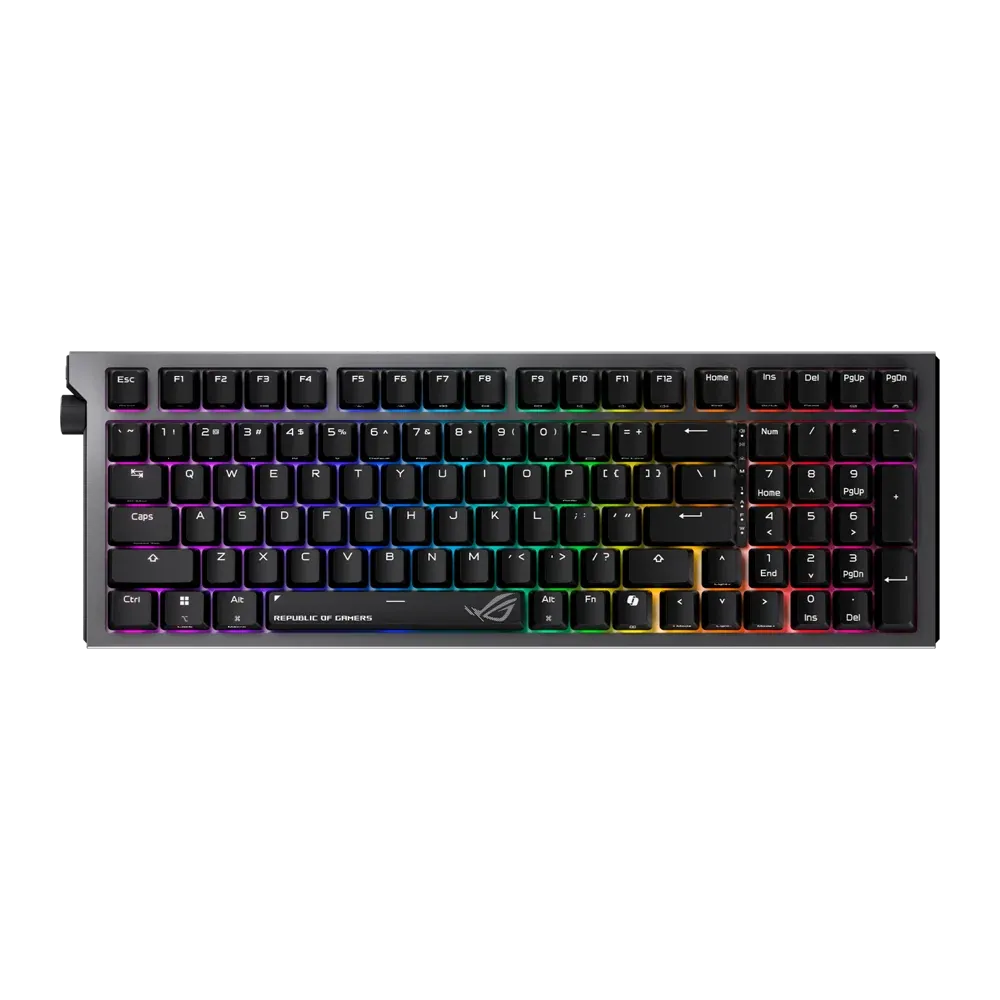
A wireless keyboard is an obvious starting point. The ASUS ROG Strix Morph 96 Wireless Gaming Keyboard illustrates this well. It moves between Bluetooth, 2.4GHz wireless, and wired USB depending on what a session calls for, and its 96% layout claws back space around the mouse that a full-size board would otherwise take up. Prefer something smaller? For a smaller footprint, The ASUS ROG Azoth 75% Wireless DIY Mechanical Gaming Keyboard pairs tri-mode connectivity with a compact build, making it a practical option for users who want mechanical typing without taking up as much desk space.
Buy Keyboard Online
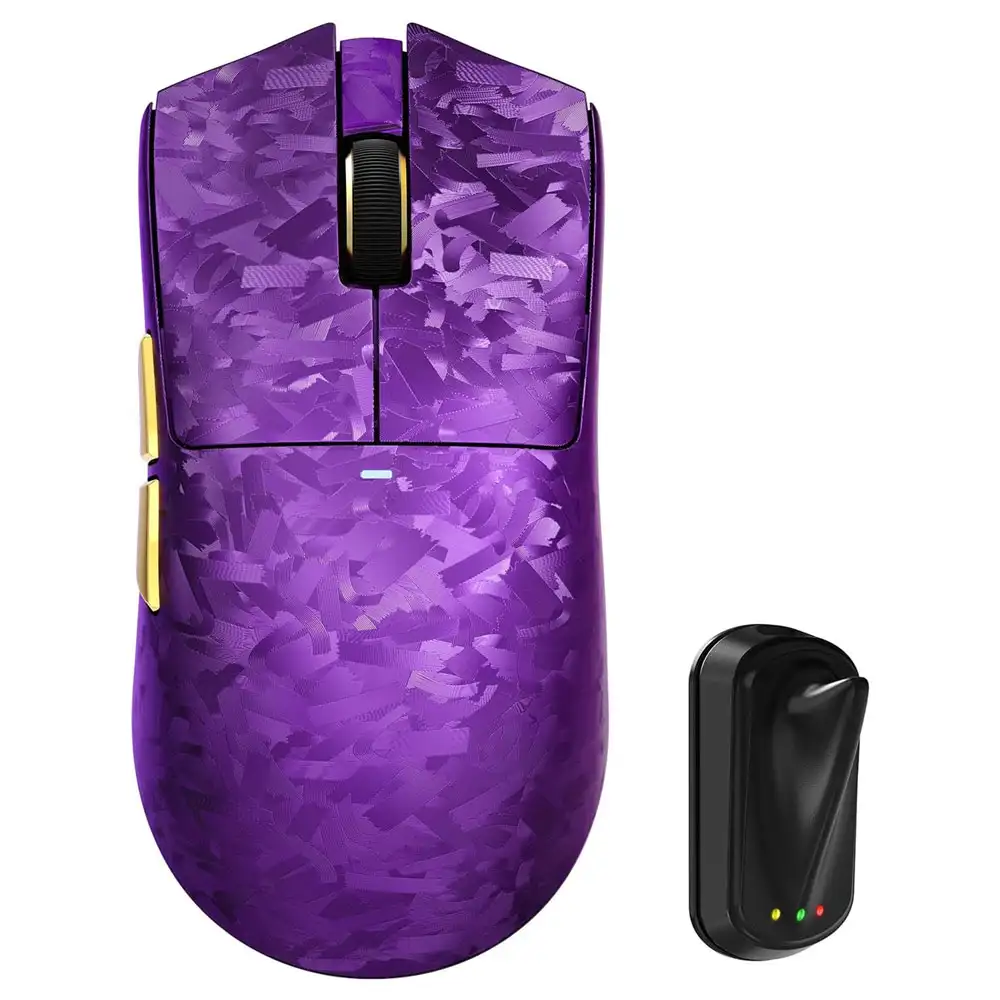
On the mouse side, the ATTACK SHARK X11 Ultra Wireless Gaming Mouse supports 2.4GHz wireless, Bluetooth, and USB-C wired connectivity, removing the cable that can restrict movement across a desk.
Wireless keyboard and mouse can make a noticeable difference here. Together, these two changes free up the desk considerably and give the mouse a genuinely open range of movement.
Buy Mouse Online
Keep the Monitor Area Minimal
Size alone puts the monitor at the centre of most desks, intentional or not. Clearing the space immediately around it has an outsized effect on how organised the entire setup appears.
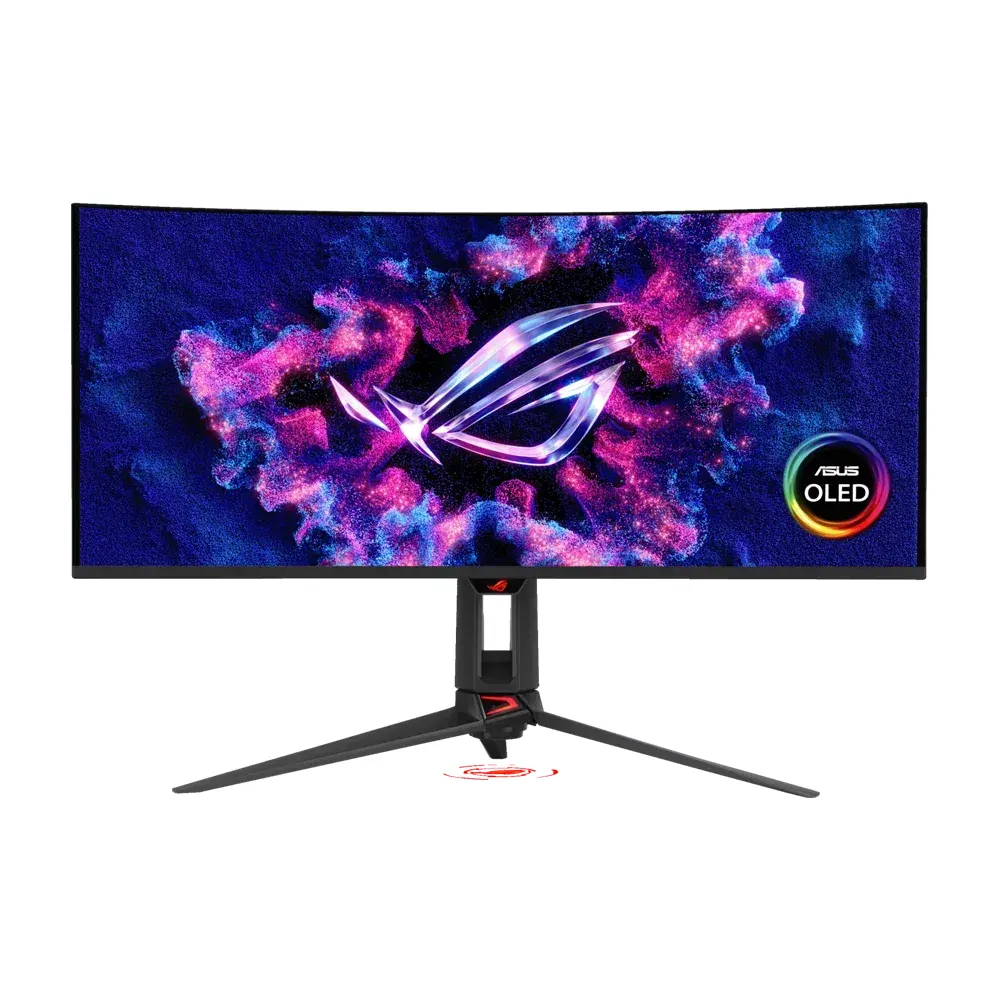
A well-sized gaming monitor can provide a comfortable viewing area without taking over the entire desk. T4G Store stocks the ASUS ROG Strix 32″ Dual-Mode Gaming Monitor, which combines a 32-inch Fast IPS display with 4K at 160Hz and FHD at 320Hz modes. Its 32-inch display provides a spacious viewing area for gaming and everyday productivity while keeping the setup focused around a single screen.
Running two or more monitors instead? The same rule applies: keep the visible desk simple and route the display cables the shortest way possible.
The goal is not to hide every connection at any cost. The goal is to prevent cables from becoming part of the visual clutter.
Move the Power Strip Off the Desktop
One of the easiest ways to improve a gaming desk setup is to remove the power strip from the surface.
When you buy gaming desk with built-in cable management features, power strips, chargers and adapters can be kept off the desktop, freeing up surprisingly large amounts of usable space. Worse, they tend to create a central point where several cables begin branching in different directions.
An under-desk cable tray resolves most of this on its own. The AndaSeat Xtreme range comes with a steel tray built in, keeping power-related connections beneath the desk rather than crowding the keyboard and mouse.
Desks without built-in cable management can still achieve a similar result using reusable cable ties and adhesive clips. Cables should be grouped according to destination rather than simply bundled together. Monitor cables can take one path, charging cables another, so nothing crosses or tangles.
That kind of separation pays off later, too, since swapping out one device doesn't mean untangling everything else.
Buy Gaming Chair & Desk Online
Give Every Accessory a Place
A clean desk is easier to maintain when accessories have designated storage.
Headphones should not be left beside the keyboard. Controllers should not occupy the main mouse area. Charging cables should not be scattered across the desk.
T4G Store's Eureka Ergonomic Gamer’s Gear Rack Bundle combines a cup holder, headset hook and controller rack in one accessory set. As useful PC accessories, products like this are useful because they move frequently used items away from the primary working surface while keeping them within reach.
The same principle can be applied to smaller accessories. Splitting the desk into zones helps here: keyboard and mouse in the primary zone, the monitor in its own space, and controllers, headphones, or other gear tucked into a secondary zone.
Once each item has its own spot, keeping the desk tidy stops being a chore.
Choose Cables With the Setup in Mind
Some cables cannot be eliminated. Display connections, wired charging and certain high-performance peripherals may still need them.
The difference comes from choosing the right length and routing each cable properly.
A cable that is much longer than necessary creates loops under the desk and excess slack around the workstation. A cable that is too short creates tension and restricts placement.
T4G Store carries Computer Accessories such as Ugreen DisplayPort cables in different lengths, along with HDMI options for modern gaming displays. Choosing the appropriate length helps keep connections neat without compromising the required display connection.
Cables work best when they're planned for from the start rather than dealt with after the fact.
Build the Setup Around Both Gaming and Work
A gaming desk often becomes a full-time workstation. That means the setup needs to accommodate more than a gaming PC and peripherals.
A productive layout leaves enough open space for writing, a laptop, documents or other work equipment. An adjustable desk adds a layer of flexibility on top of all this.
The AndaSeat Xtreme Series makes the case well. Its height-adjustable design allows the workstation to move between sitting and standing positions, while its cable-management features are designed to keep connections organised as the desk position changes. That's useful for anyone switching between gaming and work on the same day.
The Final Test Is Simple
Once the desk is assembled, the best way to judge a cable-free gaming setup is to sit down and use it.
Can the mouse move without catching a cable? Can the keyboard be repositioned easily? Are the headphones within reach? Can the main charging cables be accessed without pulling everything from underneath the desk? Is there enough open space for work? If the answer to these questions is yes, the setup is doing its job.
A clean gaming and productivity desk is not created by buying the maximum number of accessories. It comes from choosing equipment that works together. A desk with built-in cable management, wireless peripherals, sensible cable lengths and dedicated storage can remove most of the visual clutter without making the workstation complicated.
For gamers and tech users in Kuwait, T4G Store brings together gaming desks, peripherals, accessories and electronics designed for different styles of setups. From AndaSeat gaming desks and wireless keyboards to gaming mice, cable solutions and desk accessories, the collection gives users the flexibility to build a workstation around the way they actually play and work. T4G Store also provides fast delivery across Kuwait, making it easier to upgrade the setup without turning the process into a project of its own.
Build Your Gaming Setup with T4G Store
FAQs
No. A cable-free look is about controlling where cables go, not eliminating them. Devices like a gaming PC, monitor, and certain high-performance peripherals may benefit from a wired connection for lower latency, consistent performance, or reliable data transfer. The goal is to route what must be wired out of sight and go wireless only where it makes sense, such as with a keyboard or mouse.
Start with the desk itself. A desk with built-in cable routing, such as a hidden channel in the leg or an under-desk tray, removes most of the clutter before any accessories are added. Trying to manage cables on a desk with no routing built in tends to be a constant, losing battle.
Yes, more than most people expect. The keyboard and mouse area is usually the most cluttered part of a desk, since it's also the part in constant use. Removing those two cables alone opens up the primary workspace and gives the mouse a full, unobstructed range of movement.
For many productivity-focused setups, yes. A single ultrawide screen can provide a broad workspace that may reduce the need for multiple displays, while also cutting down on extra stands, cables and desk space. The available ports, such as HDMI, DisplayPort or USB-C with DisplayPort support, should be checked against the computer and monitor requirements.
Group cables by destination rather than bundling everything together. Route monitor cables along one path and charging or power cables along another, and choose cable lengths that match the actual distance needed. A cable that's too long adds slack and loops; one that's too short creates tension and limits how the desk can be arranged.


